Simplify your storage experience with the Shurgard app
Open gates. Pay invoices. Manage your account. Do it all with your phone.
Open gates. Pay invoices. Manage your account. Do it all with your phone.

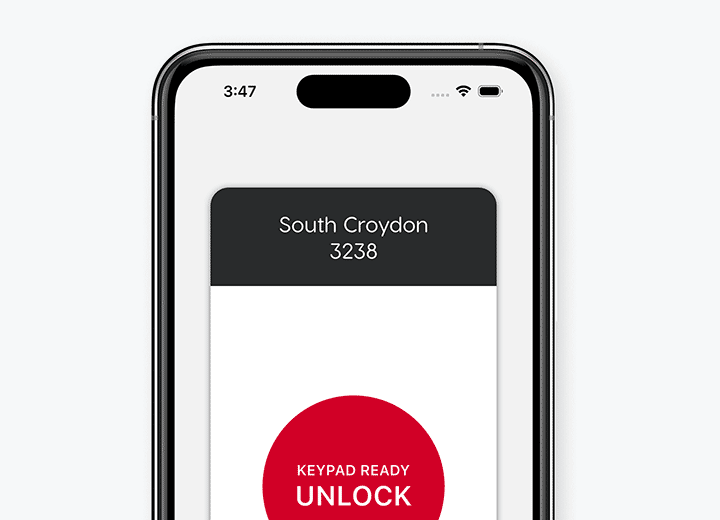
No need to use keypads or other common touch points. Once you’re within range of a gate or door, simply tap your phone to open it.
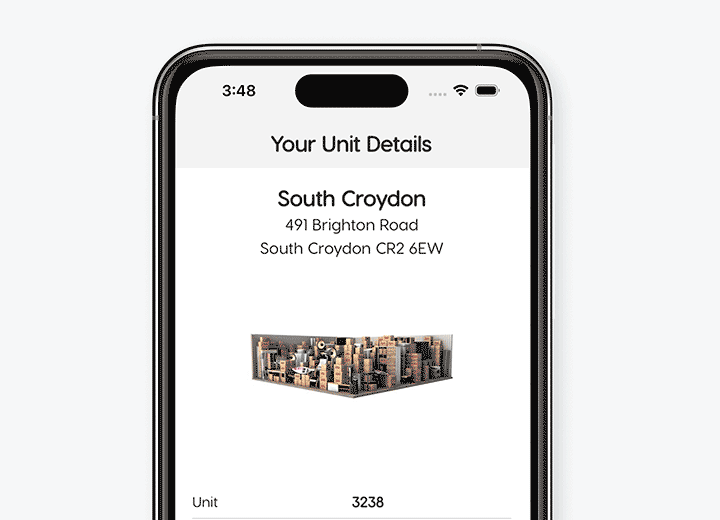
Check your storage unit details, update your profile or payment preferences without a call or visit to your storage location.
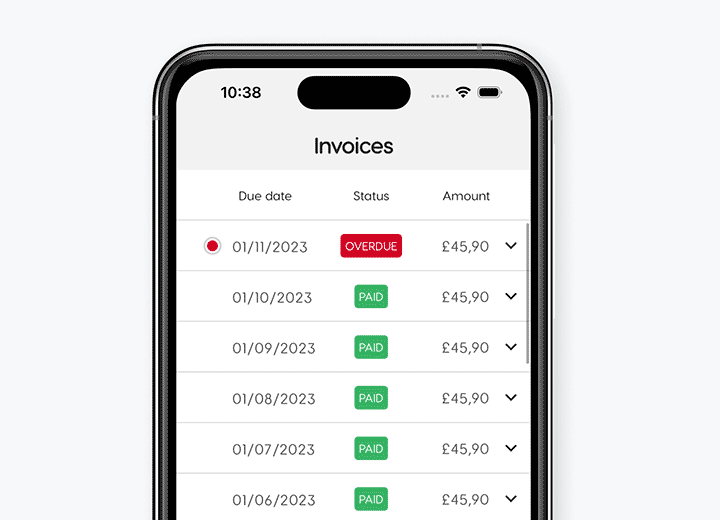
Consult and pay your invoices in just a few seconds. Set up Autopay and never miss another payment.
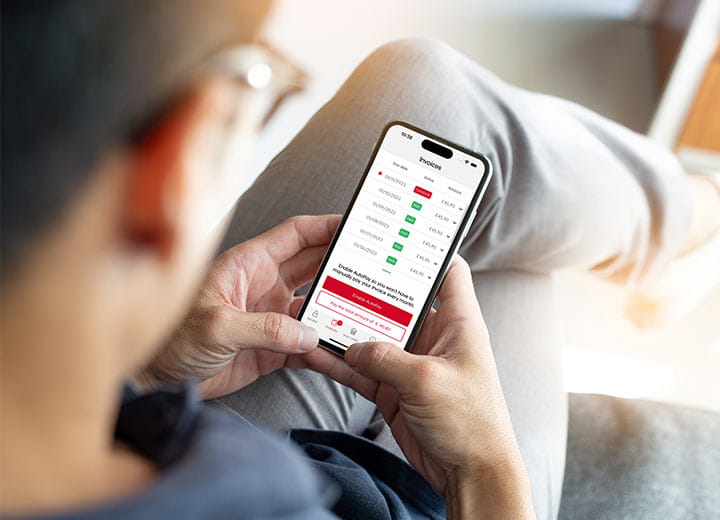
Search for Shurgard on the App Store or Google Play Store and download our free app.
Set up the app with your Shurgard account to open gates, pay invoices, and manage your account all with one touch.
Set up the app as guest user to easily open gates and doors when visiting our facility.
To enjoy all the features of the app, we strongly recommend creating an account or signing in if you already have one.
Guest user mode is useful if you want to grant access to family members or suppliers. They can use the app to open gates and doors, but they won’t have access to your invoices and profile details.
Choose Google when you are asked to create an account or sign in.
The Google email address you use must match the email address linked to your Shurgard account.
Choose Apple when you are asked to create an account or sign in.
The email address you use must match the one linked to your Shurgard account.
A Unique App Token is a secure, unique code assigned to each customer.
The Unique App Token links the app to your Shurgard account, allowing it to retrieve your access code, account information, and payment history from our system.
You will need this token to create an account. It can be found on your most recent monthly invoice.
To switch from Guest User to Account User, tap the "Guest" menu item (the last one on the right).
At the top of the screen, you will see an option to "Sign in/Create an account". Tap on it to start creating an account.
Yes, the app can be downloaded and set up on more than one phone, allowing family members or suppliers to access your storage unit(s).
Users who are not the account holder can set up the app using Guest Mode. They will need the access code to set up the app.
Please note that it might take up to 15 minutes for your invoice status to be updated.
Yes. Next to each invoice, there is an arrow. Tap on it to view the details of your invoice. To see the full invoice document, tap on "Show invoice".
Yes. Next to each invoice, there is an arrow. Tap on it to view the details, then tap on "Show invoice". You will have the option to share the invoice from the top right corner of the screen.
Please note that it might take up to 15 minutes for your AutoPay status to be updated.
Disabling AutoPay means you will need to manually pay your invoice each month.
If you rent your units using the same email address but under different customer IDs, check your invoices for the different Unique App Tokens.
To set up additional profiles:
You can switch between the different profiles under the "Profile" section.
Yes. Once you have created your account, you can add more profiles if you have different Unique App Tokens on your invoices.
If you rent your units using different email addresses, you will need to create a separate account for each email address.
Use the "Sign out" option under the "Profile" section (the last menu item on the right, showing your profile name) to switch between different accounts.